Warning
Nous commençons tout juste à traduire la documentation pour cette langue, désolé !
Nous affichons des pages traduites partiellement afin de suivre l’avancement.
Cette page n’est pas encore traduite. Mais la bonne nouvelle est que vous pouvez rejoindre la communauté de traduction pour nous aider 👋.
Page widget: Widget Creator#
Grist’s Widget Creator lets you add a widget that you build yourself, with HTML and JavaScript. Grist saves the code in the document, so copies and exports of the document keep the widget. You do not need a web server, as you do for a custom widget.
Did you know?
If the AI Assistant is available, it can write the code of the widget for you. See Building widgets with the Assistant.
To add the widget, click ‘Add New’, and select ‘Create your own’ in the list of widgets.
Writing the code#
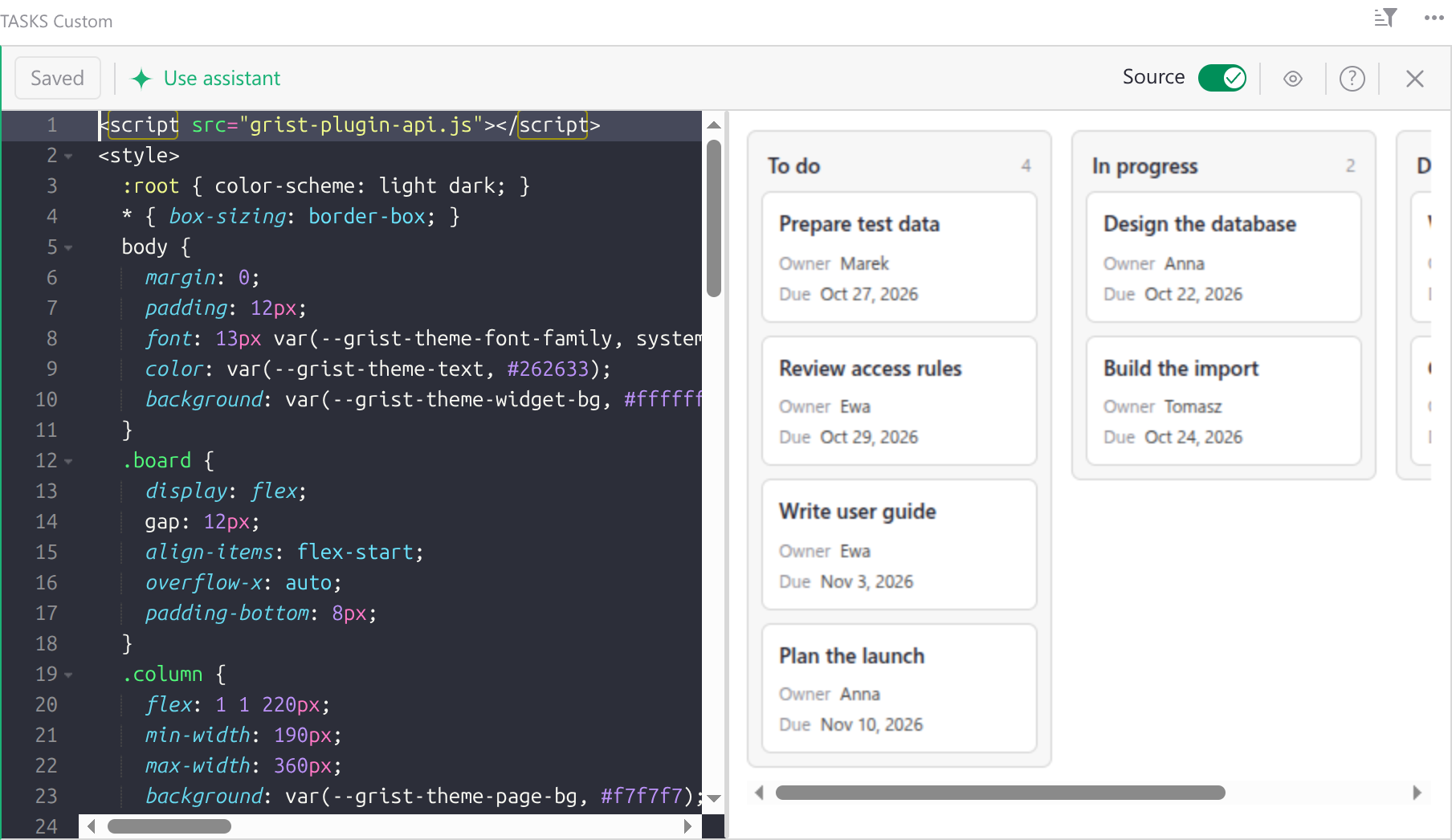
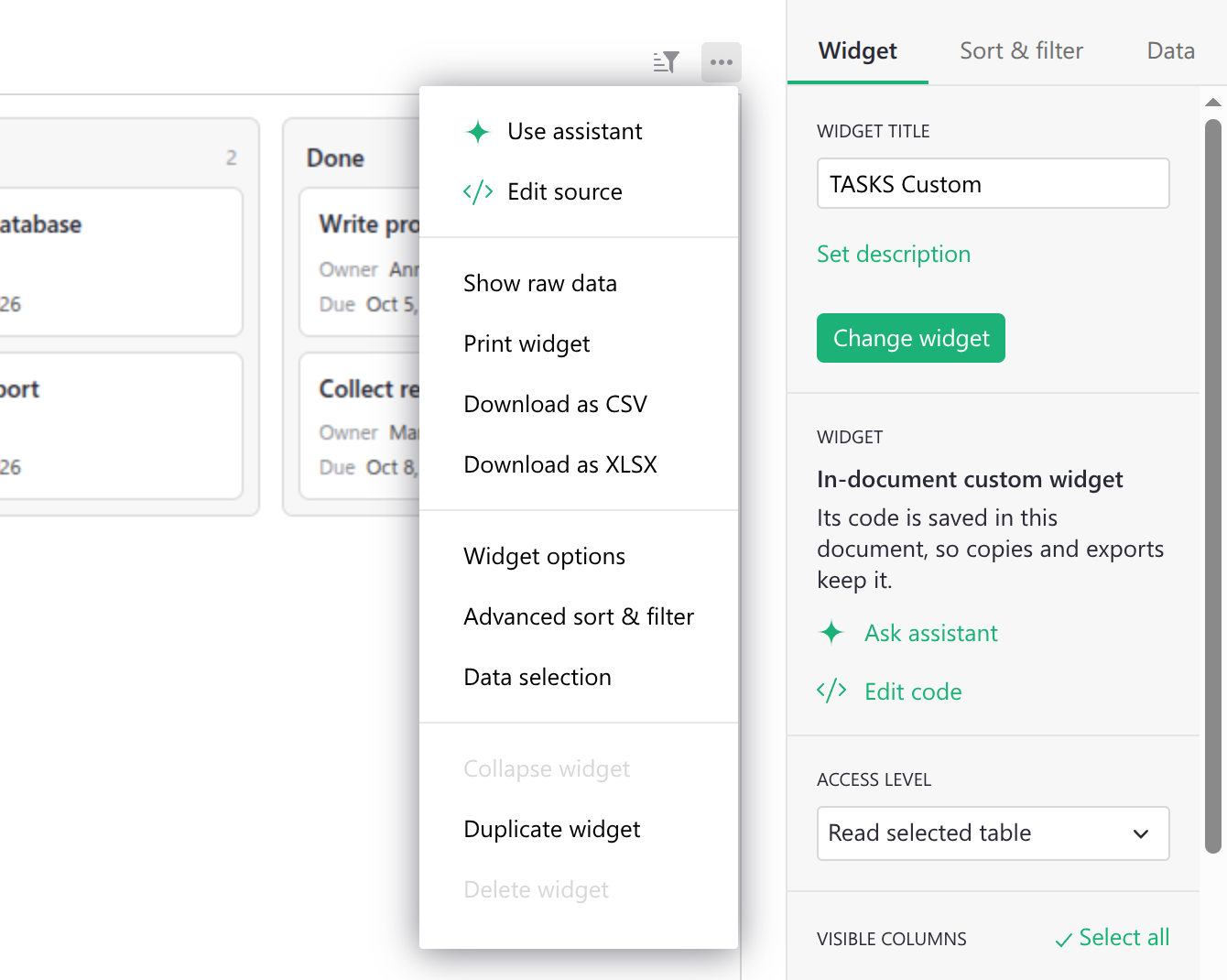
To write or change the code, click ‘Edit source’ in the empty widget, or open the widget menu (the three dots at the top right of the widget) and select ‘Edit source’. You can also click ‘Edit code’ on the ‘Widget’ tab of the Creator Panel.
The editor opens inside the widget, with a bar at the top:
- ‘Save’ saves the code in the document. You can also press
Ctrl + S(Mac:⌘ + S). The button shows ‘Saved’ when there are no changes to save, and ‘Empty’ when the widget has no code. - ‘Use assistant’ opens the Assistant panel.
- ‘Source’ shows or hides the code next to the widget.
- hides or shows the widget, so the code can use the whole width.
- The question mark shows a short description of the Widget Creator.
- The ‘x’ closes the editor.
The widget runs your changes a moment after you stop typing. Other users of the document see the new code only after you save it. If you close the editor with changes that are not saved, Grist asks if you want to save them.
To save the code, you need the structure permission.
If the widget is too narrow, the bar shows only ‘Save’, an expand icon and the ‘x’. Click the expand icon to see the editor on the whole page.
The code is one HTML page. It must load the Grist plugin API – the JavaScript library that lets the widget read and change data – and tell Grist which data it needs. Here is a short example that shows the rows of the table as a list:
<script src="grist-plugin-api.js"></script>
<ul id="list"></ul>
<script>
  grist.ready({ requiredAccess: "read table" });
  grist.onRecords(function (records) {
    document.getElementById("list").innerHTML =
      records.map(r => `<li>${r.Task}</li>`).join("");
  });
</script>
Use the address grist-plugin-api.js as it is. Grist serves the plugin API itself, so the
widget does not depend on any other server.
The Widget Creator uses the same plugin API as a custom widget. To learn more, see:
- Creating a custom widget:
grist.ready,grist.onRecordsandgrist.onRecord. - Access level: what the widget can do with the document. Unlike a custom widget, which starts with ‘No document access’, a new widget made with the Widget Creator starts with ‘Read selected table’.
- Column mapping: let users pick the columns the widget uses.
- Widget options: save the settings of the widget.
- Custom Widget linking: select rows in other widgets.
- Plugin API reference: all functions of the plugin API.
Fixing errors#
When the code fails, the editor shows the error and its line under the widget. Click ‘Copy error’ to copy the text of the error. If the AI Assistant is available, click ‘Send to assistant’ to ask it to fix the error for you.

Building widgets with the Assistant#
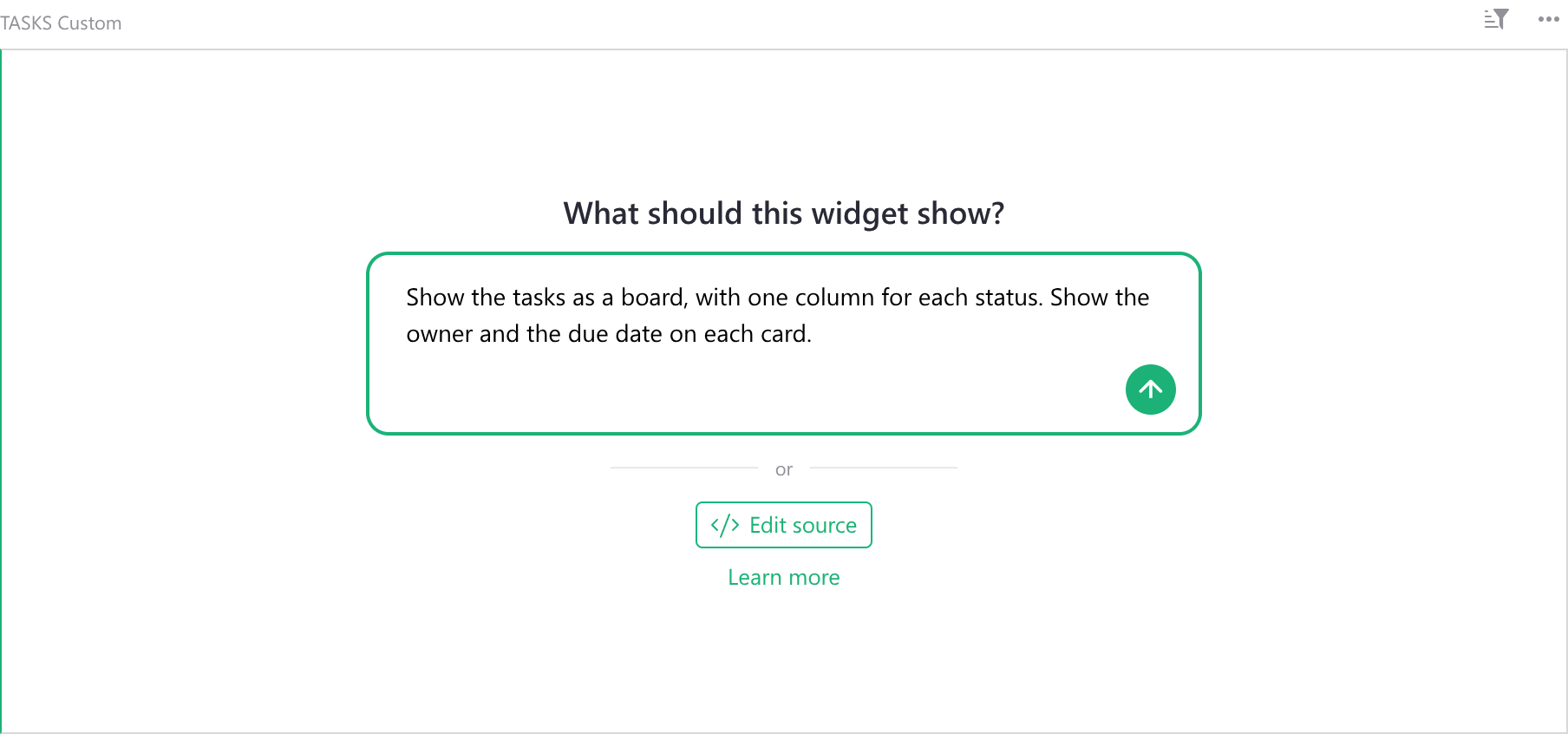
If the AI Assistant is available, it can write the code for you. An empty widget
asks ‘What should this widget show?’ Type what you want to see, and press
Enter.
The Assistant panel opens, and the Assistant writes the code. The widget runs the new code at once, so you can check the result. The code is a draft: Grist saves nothing in the document until you click ‘Save’.
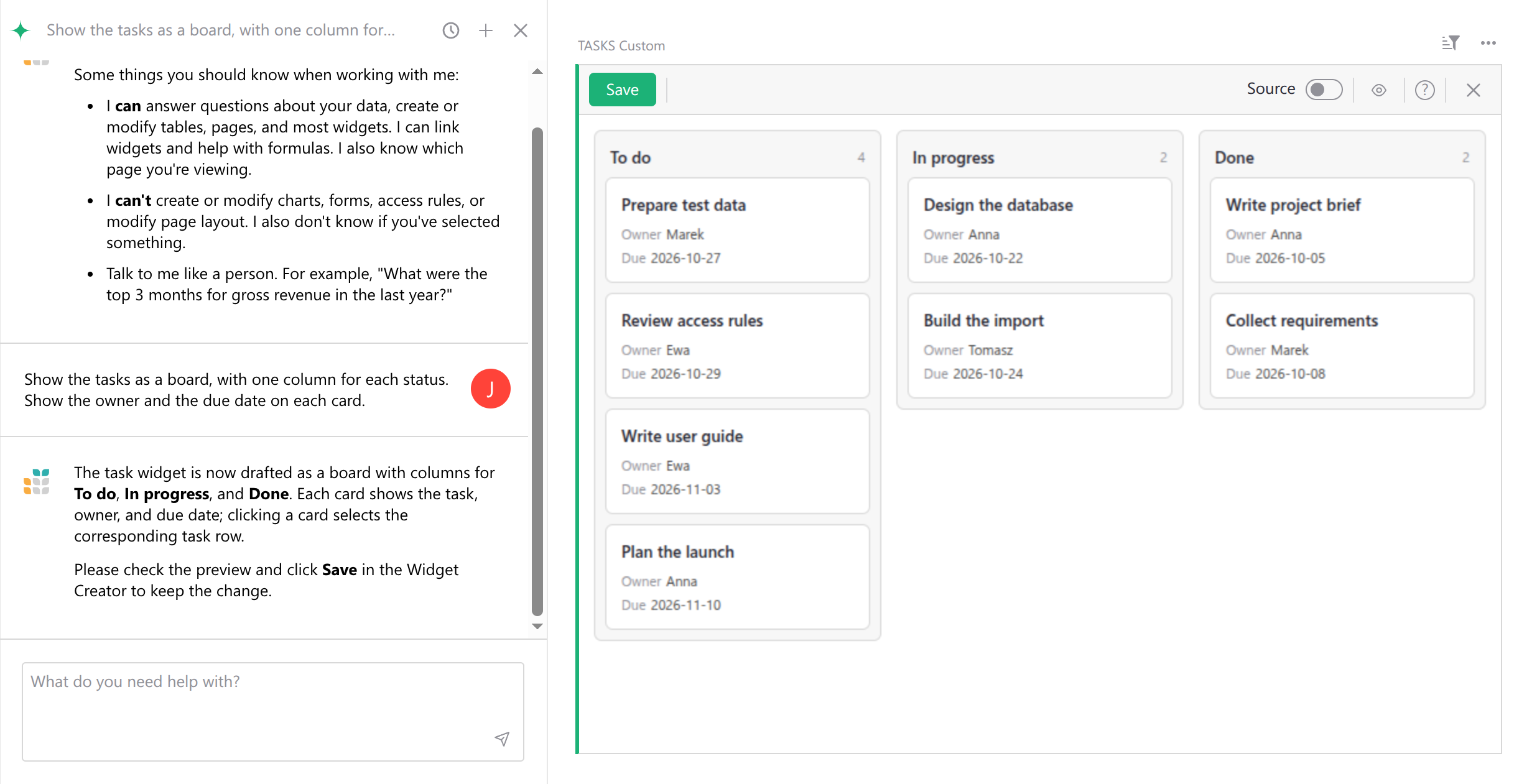
To change the widget, write to the Assistant again, for example “Sort the cards by due date” or “Show overdue tasks in red”. Each answer updates the draft. Click ‘Save’ when you like the result.
You can also ask the Assistant about a widget that already has code:
- In the widget menu, select ‘Use assistant’.
- In the editor, click ‘Use assistant’.
- When the code fails, click ‘Send to assistant’ next to the error.
An AI agent connected through the Grist MCP server, such as Claude or ChatGPT, can also add such a widget and write its code. Ask it, for example “Add a widget to the Tasks page that shows the tasks as cards”. There is no draft in this case: the agent saves the code in the document right away, and all users see it.
Learn more about the Assistant, its credits, and how it uses your data.
Widget Creator for self-hosters#
The Widget Creator is available in all editions of Grist. Without the Assistant, you can write the code yourself with ‘Edit source’.
To use the Assistant, enable the full edition of Grist and set up the Assistant. See Assistant for self-hosters.
Moving from the Custom Widget Builder#
Before the Widget Creator, many users built their widgets with the Custom Widget Builder, a custom widget from the widget gallery. You can move such a widget to the Widget Creator. Grist keeps its HTML and JavaScript code:
- Click the widget and open the Creator Panel.
- On the ‘Widget’ tab, click ‘Change widget’.
- Select ‘Create your own’, and click ‘Save’.
After the move, the access level is ‘Read selected table’. If the widget adds or changes records, set the access level to ‘Full document access’ again.