Connected apps#
Allowing an integration, a script, or an AI agent to access your Grist data has typically meant sharing an API key. An API key provides complete access to everything you can access, and so carries the same risk as handing out your password.
Connected apps – based on the OAuth framework – provide a more secure alternative. When a tool needs to access your Grist data or act on it, it asks for permission. You can see what permissions it’s asking for, and choose which documents to grant access to. You can also see which apps have what access, and revoke their access at any time.
For an app or tool that already supports Grist, you only need to authorize it by simply following that tool’s “Connect to Grist” instructions. The rest of this article covers the details of this.
If you are building a new app or integration that others will use to connect to Grist, or wiring up a tool that supports OAuth but doesn’t yet have a Grist integration, see developer documentation at OAuth apps.
Authorizing an app#
When a third-party tool, AI agent, or partner application asks to connect to your Grist account, you’ll see a consent screen like this:
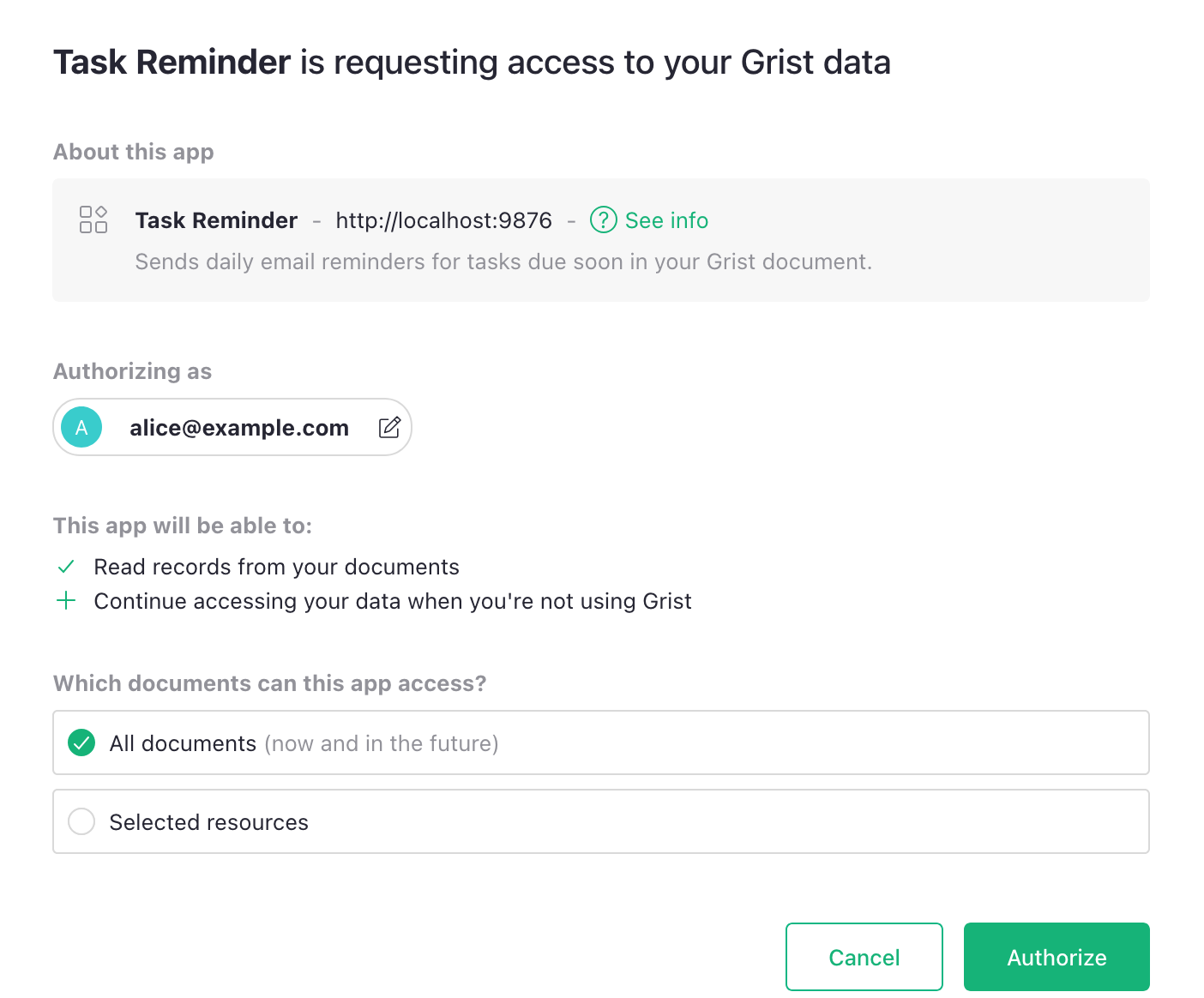
This is where you get to review and approve what the app is requesting. You’ll see:
- The app’s name, URL, who registered it, and optionally a description and contact info.
- The permissions it’s requesting, like “Read records from your documents”.
- Whether the app wants to continue accessing your data when you are not using Grist (for automations that can run when you are not at the browser).
- A choice between ‘All documents’ and ‘Selected resources’. This lets you restrict the app’s access to specific documents, workspaces, or orgs (team sites or personal sites).
Choosing ‘Selected resources’ opens a picker:
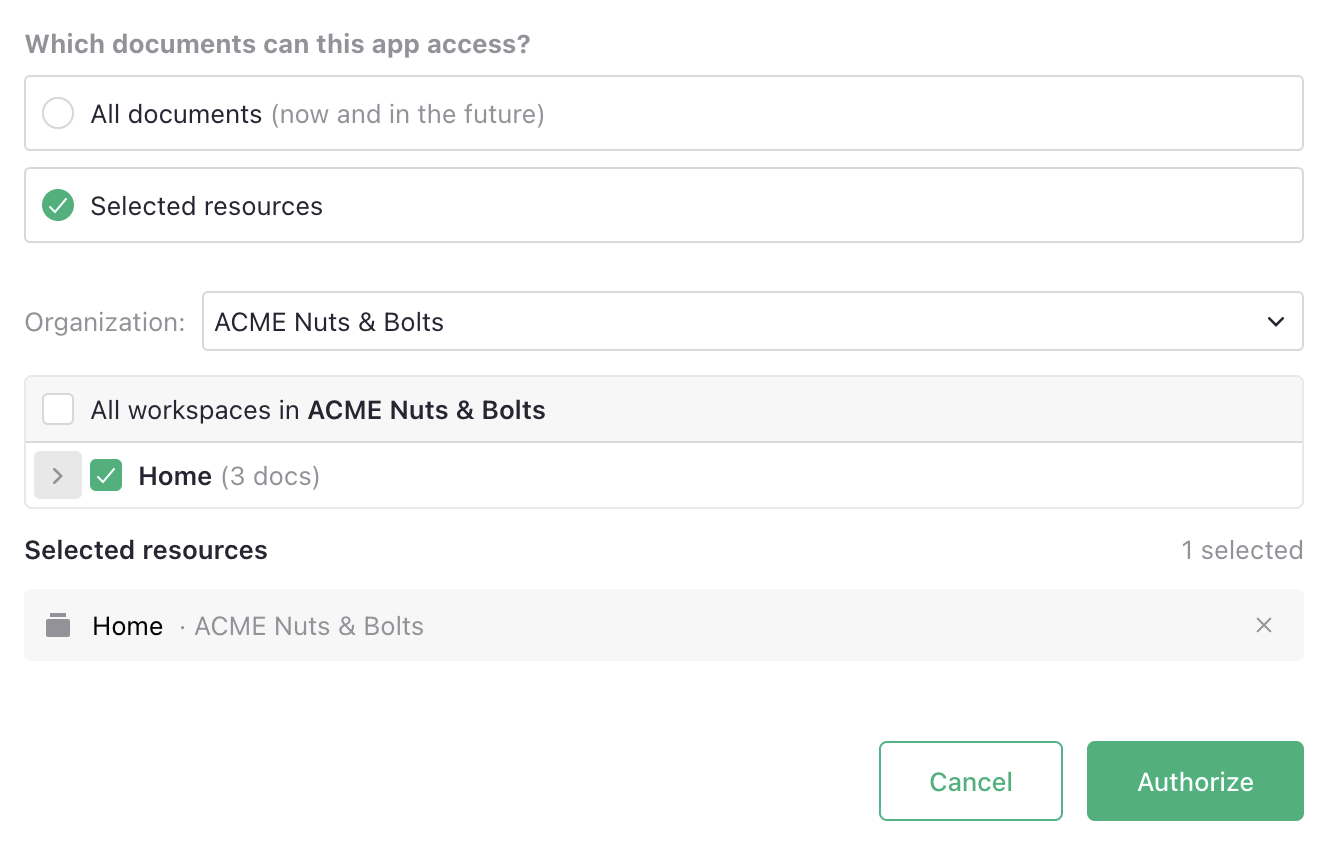
Only authorize apps you trust, after reviewing the app info, especially the shown URL. It’s best to follow the principle of least privilege to grant access only to the resources the app needs. You can come back later to change that selection.
Permission limits
Connected apps can only do at most what you, the authorizing user, can do. Their access is limited by the same access rules. The app-specific permissions and the resources you select can restrict this access, but never expand it.
Managing authorized apps#
You can find ‘Authorized apps’ in ‘Account settings’ available under your user menu. This page lists every connected app you’ve granted access to.
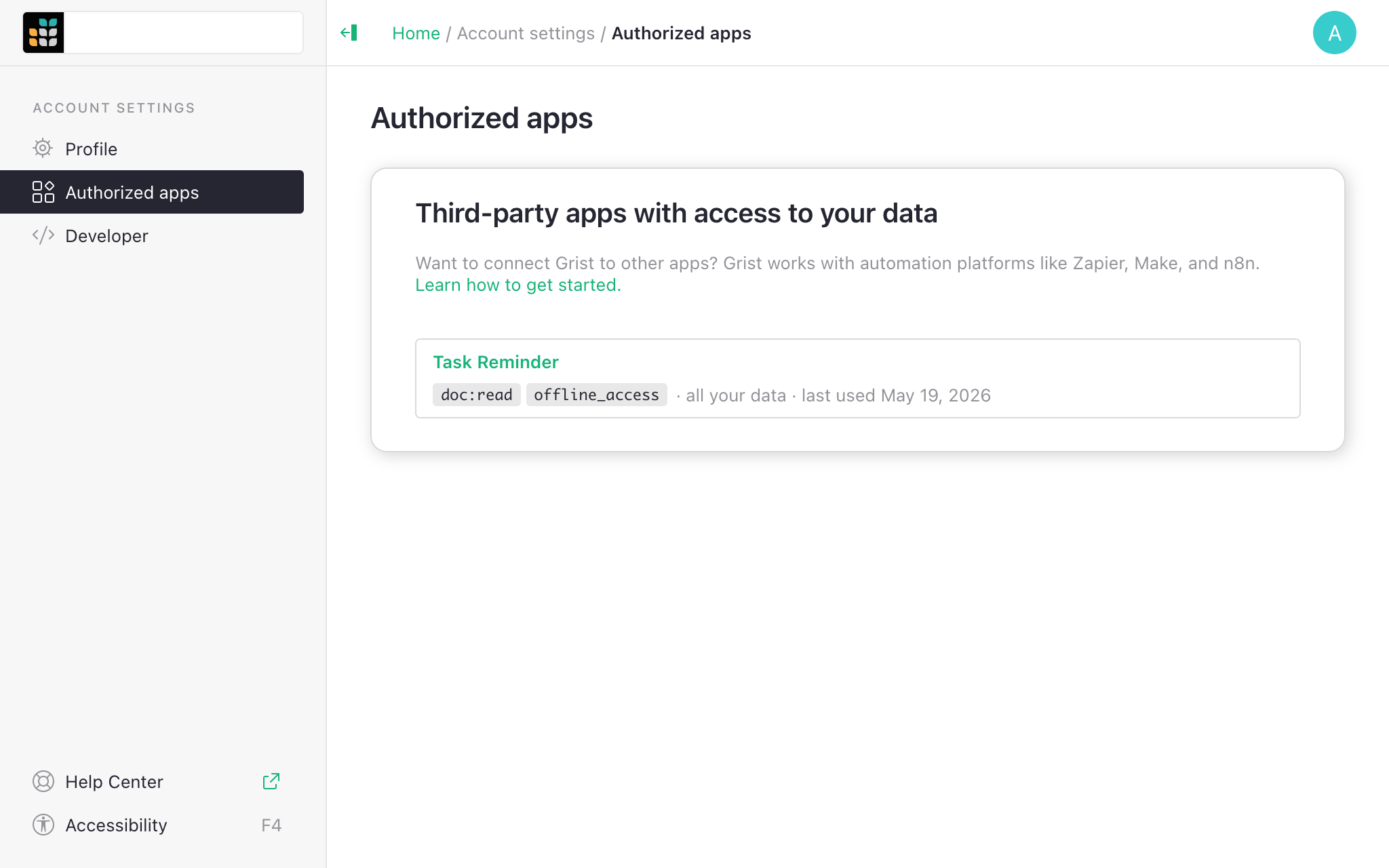
For each one, you can see:
- When you authorized it, and when it was last used.
- What the app has permission to do.
- Which documents or workspaces the app can reach.
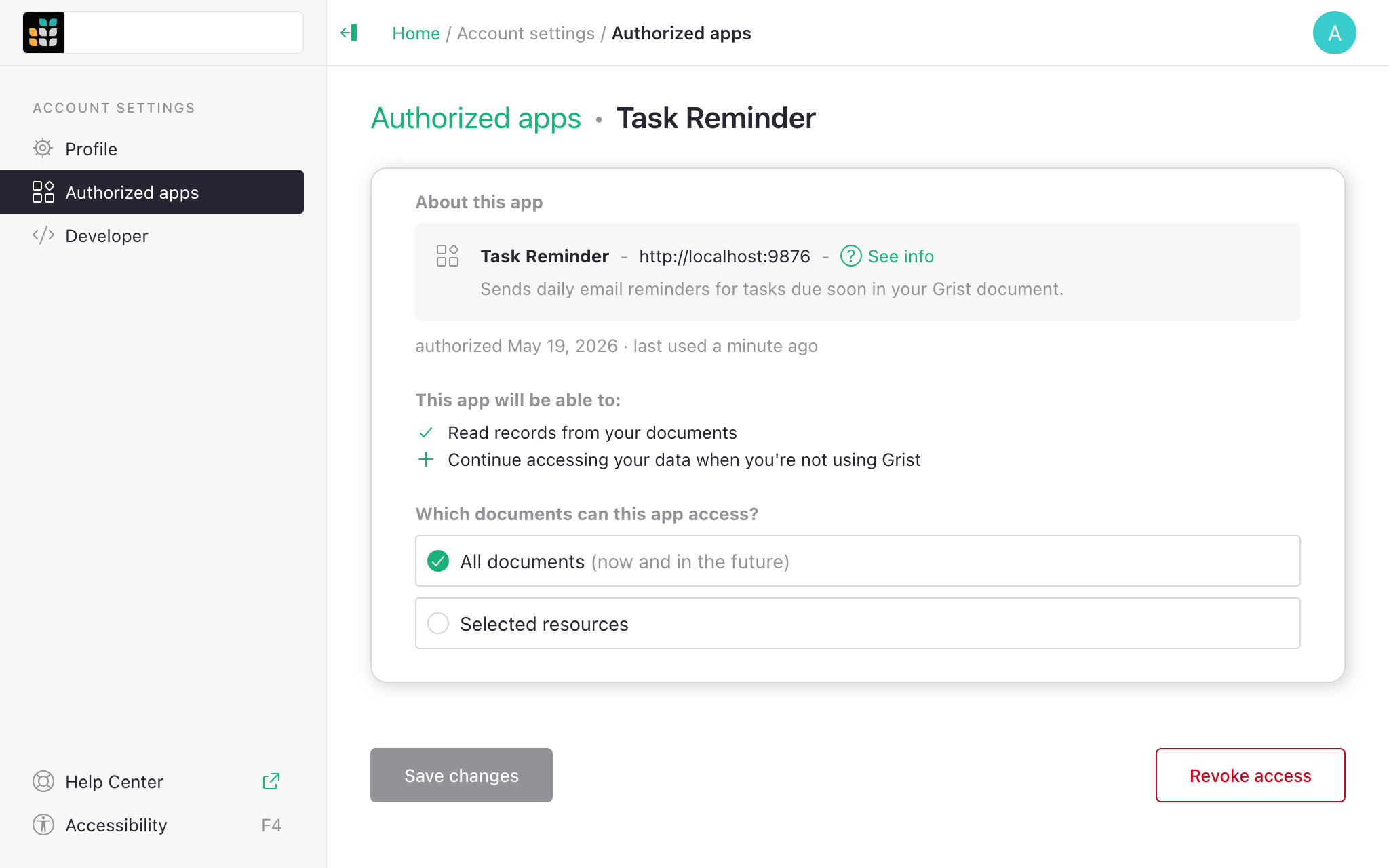
This is also where you can change which documents a connected app can access, or revoke access completely with the ‘Revoke’ button.
API keys vs connected apps#
| API key | Connected app | |
|---|---|---|
| What can it access? | Everything you can | Documents you choose |
| What can it do? | Anything you can do | Only requested permissions |
| Tied to | Your account | A specific app and grant |
| Can revoke individually? | No (one key per account) | Yes (revoke any one app) |
For any integration that supports it, we recommend using the connected app rather than an API key – for better security, convenience, and visibility. Each connection is scoped to specific documents, is visible in the list of authorized apps, and can be revoked individually.
On self-hosted Grist#
When you run Grist on your own infrastructure, the OAuth server runs there too, and enables the same type of connections with enhanced security properties and convenience. Authorization and validation all happen on the self-hosted server you control.
This allows you to create internal integrations or connect existing services to your self-hosted instance without sharing API keys.
Connected apps require the full edition of Grist. See OAuth apps for how to build apps that connect this way.