Running totals, previous records, and nearest matches#
Most Grist formulas use values from the same record ($Amount * $Rate), from a referenced
record ($Person.Name), or from records found by an exact match (Sponsors.lookupOne(Email=$Email)).
See References and lookups for those.
Some calculations need a record that you can’t name by an exact value. You only know where it falls in some order:
- The previous transaction, to add up a running balance or any cumulative total.
- The rate in effect on a given date, from a history of rates.
- The tier that an amount falls into, for commissions, shipping, discounts, or tax brackets (an approximate match, in spreadsheet terms).
- The latest or earliest record in a group, like a customer’s most recent order.
- A record’s rank, like whether a sale is among the ten largest.
Grist has a few functions for these: PREVIOUS,
NEXT, and RANK for cumulative calculations, and
the order_by parameter of lookups together with the find.* methods for
nearest matches. We call the whole family “ordered lookups”, because each one sorts records in
an order that you state in the formula.
Each one gives you three things:
- Correctness that doesn’t depend on the view. A traditional spreadsheet’s “previous row” is whatever row sits above on screen, so sorting or inserting rows can break the math. In Grist, the order is part of the formula, so sorting, filtering, or rearranging a view never changes the results.
- Simple formulas. Each of these jobs takes a line or two.
- Speed. Grist keeps the looked-up records sorted and finds what you need with a binary search, so these formulas stay fast with tens of thousands of records, where hand-rolled loops can get very slow. There’s more on this below.
Prefer video?
The webinar Advanced formulas with ordered lookups covers the same material, with a guided walkthrough of the examples on this page.
Running totals with PREVIOUS#
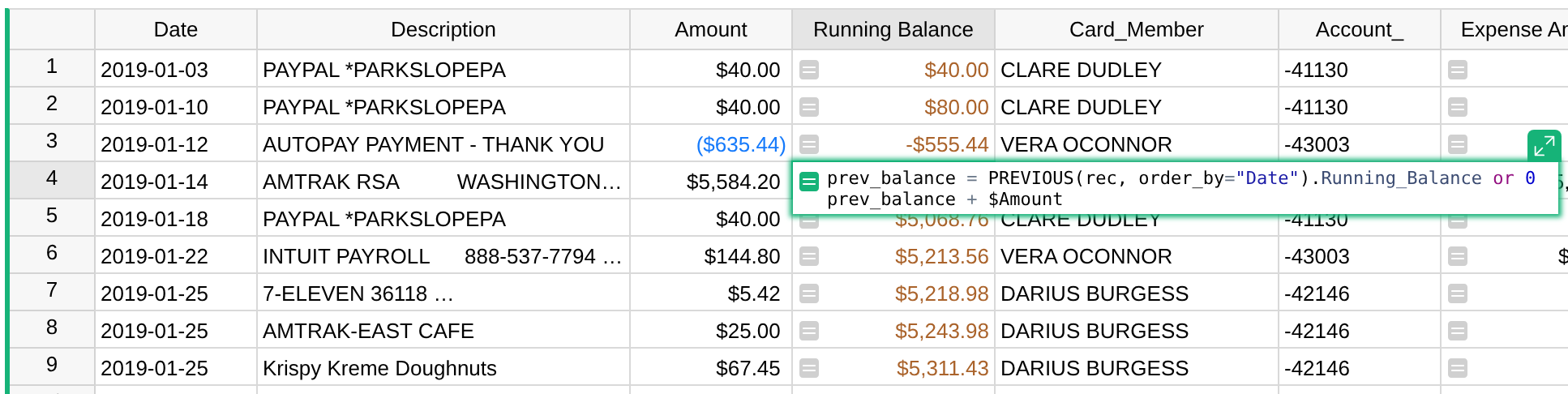
The Credit Card Activity example has a table of transactions with a Date and an Amount. To get a running balance, each record needs the balance from the record before it, plus its own amount. That’s the formula in the Running Balance column:
prev_balance = PREVIOUS(rec, order_by="Date").Running_Balance or 0
prev_balance + $Amount
Here’s what’s going on:
PREVIOUS(rec, order_by="Date")sorts the table by Date, finds where the current record (rec) falls, and returns the record just before it. Note that"Date"is the column’s ID in quotes, not$Date.- The result is a record, like a value in a Reference column, so you can use dot
notation to get any field from it. Here,
.Running_Balanceis the balance of the previous transaction. - The first record has no previous record.
PREVIOUSreturns an empty record, and its Running Balance is empty. Theor 0turns that into zero, so that the addition works.
Numeric columns don’t need or 0
If the Running Balance column has the type Numeric, the empty record’s .Running_Balance is
0 rather than empty, so or 0 isn’t needed. If the column has the type Any, leaving out
or 0 leads to an error like “TypeError: unsupported operand type(s) for +: ‘NoneType’ and ‘float’”.
Try sorting this table by Amount, or filtering it, or adding a page that shows the same data differently. The running balance stays the same in each record: it’s always the balance in Date order, because that’s what the formula says.
Running totals per group with group_by#
Transactions for different accounts, people, or categories belong in the same table. To keep a
separate running balance for each, add group_by. The Credit Card example has a second running
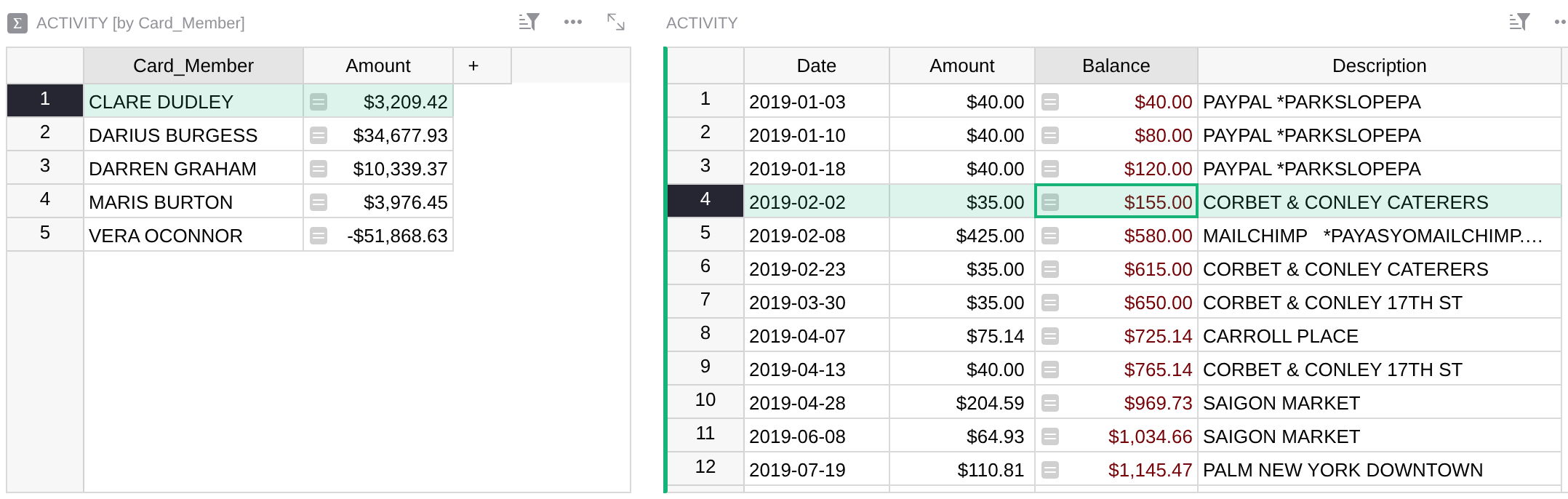
total, in a column named Balance, which keeps a separate balance for each card member:
prev_balance = PREVIOUS(rec, group_by="Card_Member", order_by="Date").Balance or 0
prev_balance + $Amount
PREVIOUS now finds the previous record by Date among the records with the same Card_Member
as the current one.
On the By Card Member page, selecting a card member shows just their transactions, and the Balance column adds up as you’d expect:
Show each running total where it makes sense
A formula’s value doesn’t depend on the view. In a view with all card members, a per-member balance would jump between rows, because each row continues its own member’s total. In views of the whole table, show the overall running total. In views filtered or linked to one card member, show the per-member balance.
Using the whole previous record#
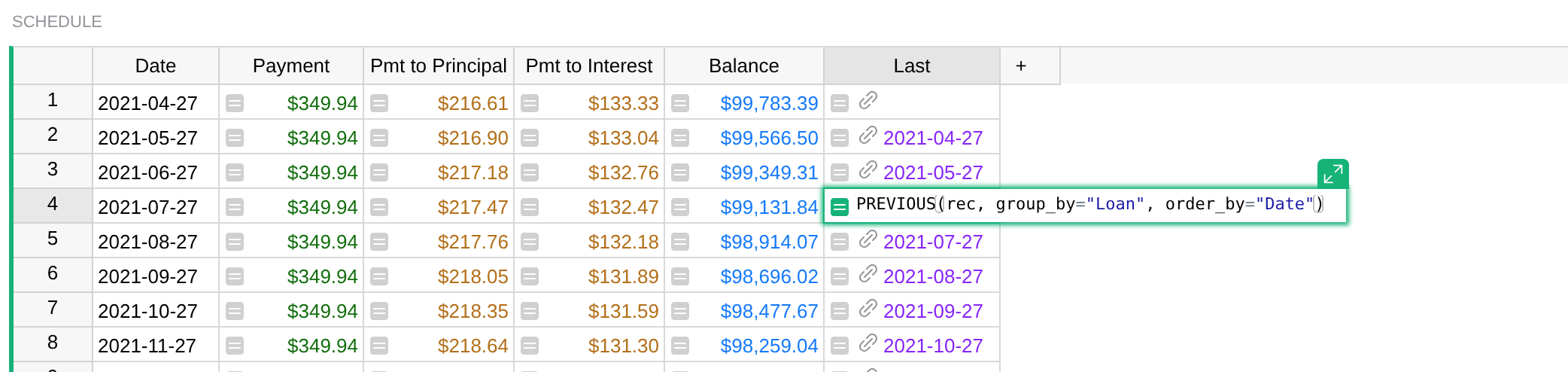
When several formulas need the previous record, it helps to put it in a column of its own. The Loan Tracker example computes a loan’s amortization schedule, where each payment’s interest and principal depend on the balance left after the previous payment. Its Schedule table has a column called Last, with the formula:
PREVIOUS(rec, group_by="Loan", order_by="Date")
The column type is set to Reference to the Schedule table itself, so each row points to the payment before it in the same loan:
Other formulas then use $Last like any reference. For example, this formula gives the starting
principal in each payment row:
$Last.Outstanding_Principal if $Last else $Loan.Initial_Amount
For the first payment of a loan, $Last is empty, so the formula falls back to the loan’s initial
amount.
Sort order options#
The group_by and order_by parameters accept a few variations:
- Descending order: prefix a column ID with a minus sign, as in
order_by="-Date"for newest first, ororder_by="-Amount"for largest first. - Several columns: use a tuple, as in
group_by=("Account", "Category")ororder_by=("Date", "-Amount"). Records are sorted by the first column, then by the next one to break ties. - Manual row order: use
order_by=Noneto follow the order in which rows appear in the table when it isn’t sorted, including any rows you’ve dragged into place.
When several records have the same order_by values, such as two transactions on the same date,
they are ordered by their position in the unsorted table. That’s also how Grist breaks ties when
you sort a view, so in an unfiltered view sorted by Date, the previous record is the row just
above.
The same options work for NEXT, RANK, and the order_by parameter of lookupOne and
lookupRecords.
NEXT and RANK#
NEXT is the mirror image of PREVIOUS: it returns the following record
rather than the previous one. You’ll rarely need it, since PREVIOUS with a reversed order does
the same thing.
RANK returns a record’s position in the sorted order, starting with 1. For
example, this formula is true for the ten largest transactions:
RANK(rec, order_by="-Amount") <= 10
With group_by, the rank counts within each group, so RANK(rec, group_by="Card_Member",
order_by="-Amount") == 1 marks each member’s largest transaction.
Nearest matches with find.le and friends#
The second kind of ordered lookup finds the record nearest to a value. Take the Payroll example: each person’s hourly rate can change over time, and the Rates table keeps the history, with the date each rate started. Every payroll entry needs the rate in effect on its own date, which is the latest rate that started on or before that date.
rates = Rates.lookupRecords(Person=$Person, Role=$Role, order_by="Rate_Start")
rates.find.le($Date).Hourly_Rate
This takes two steps:
lookupRecords(..., order_by="Rate_Start")returns this person’s rates for this role, sorted by Rate Start..find.le($Date)finds the last record in that sorted list whose Rate Start is less than or equal to (le) the payroll date. That’s the rate in effect on that date.
The value passed to find.le is compared with the order_by column, here Rate Start.
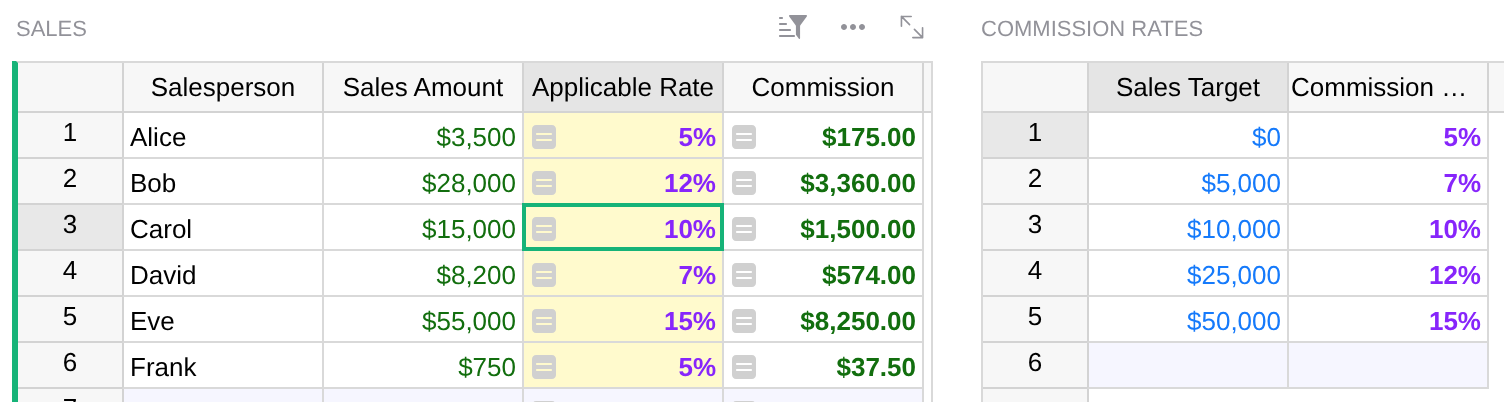
Dates are common, but anything that can be sorted works. The Sales Commissions example has a table of tiers, where reaching each Sales Target earns a higher Commission Rate. To find the rate for each salesperson:
rates = Commission_Rates.lookupRecords(order_by="Sales_Target")
rates.find.le($Sales_Amount).Commission_Rate
lookupRecords with no field arguments returns all records of the table, here sorted by
Sales Target. For Carol’s $15,000 in sales, the last tier at or below that amount is $10,000, so
her rate is 10%:
The same approach works for shipping rates, volume discounts, tax brackets, or exchange rates in
effect on a date (use Exchange_Rates.lookupRecords(Currency=$Currency, order_by="Date")). If
you’re coming from Excel or Google Sheets, this is the job of VLOOKUP with approximate
matching, without the requirement to keep the lookup table sorted.
There are five find methods. “Less” means “earlier in the sort order”, and “greater” means
“later”:
| Method | Finds |
|---|---|
find.le(value) |
The last record whose sort value is less than or equal to value. |
find.lt(value) |
The last record whose sort value is strictly less than value. |
find.ge(value) |
The first record whose sort value is greater than or equal to value. |
find.gt(value) |
The first record whose sort value is strictly greater than value. |
find.eq(value) |
The first record whose sort value equals value. |
If no record qualifies, as when a sales amount is below the lowest tier, the result is an empty record. Its fields have their column’s default value: zero for Numeric columns, empty for most others.
If order_by lists several columns, pass a value for each, as in
Targets.lookupRecords(order_by=("Year", "Week")).find.le($Year, $Week).
First and last records with lookupOne#
To get the first or last record in a group, you don’t need find at all. lookupOne returns the
first matching record, and order_by determines which one is first. For a customer’s most recent
order:
Orders.lookupOne(Customer=$id, order_by="-Date")
The minus sign sorts by Date descending, so the first record is the latest. Without the minus, you get the customer’s first order. In the Payroll example, you could add this formula to the People table to show each person’s most recent rate:
Rates.lookupOne(Person=$id, order_by="-Rate_Start").Hourly_Rate
See also lookupOne and order_by.
Why not plain Python?#
Grist formulas are Python, so you could write any of these calculations with a plain loop. Why bother with special functions? The crucial difference is speed.
Here’s a running total that loops over the table:
SUM(r.Amount for r in Transactions.all if r.Date <= $Date)
This gives the right total, except when several transactions share a date, since they all get the same total. Worse, each record looks at every record in the table. With 1,000 transactions, that’s 1,000 × 1,000, or a million steps. With 20,000 transactions, it’s 400 million. (If you’ve studied algorithms, that’s quadratic complexity, or O(N²).)
Ordered lookups avoid that. Grist keeps the looked-up records sorted. To find where a record falls, it does a fast binary search, the way you’d look up a word in a paper dictionary. For the whole table of 20,000 records, that’s over 1,000 times fewer steps than the loop. (That’s O(N log N) complexity.)
In a test with 20,000 transactions, PREVIOUS computed the whole column of running balances in a
few seconds. The loop version was still running after five minutes.
Ordered lookups are also easier to read, for you and for the next person who has to understand the formula.
If a document feels slow, the formula timer shows which formulas take the most time. Formulas that scan whole tables, or have any kind of loop inside, are good candidates to rewrite with ordered lookups.